Jitter clicking is a technique used to click a mouse button as many times as possible in a short period of time.
This can be useful in some games, such as Minecraft PvP, where clicking speed is important.
However, jitter clicking can also be harmful to your hands and wrists, so it is important to choose a mouse that is designed for this technique.
Factors to Consider For Choosing Mouse For Jitter Clicking
When choosing a mouse for jitter clicking, there are a few key factors to consider:
Grip Style
There are three main mouse grip styles: palm grip, claw grip, and fingertip grip.
Palm Grip: In a palm grip, the entire palm of your hand rests on the mouse, with your fingers arched over the buttons and your thumb on the side. This is the most common grip style, and it is often the most comfortable for long periods of time.
Claw Grip: In a claw grip, your palm does not touch the mouse. Instead, your palm rests on the back of the mouse and your fingers are curled into a claw-like shape. This grip style gives you more control over the mouse, but it can be more tiring to maintain for long periods of time.
Fingertip Grip: In a fingertip grip, only the tips of your fingers touch the mouse buttons. This grip style is the least common, but it can be the most precise. It is often used by gamers who need to make quick and accurate movements.
The best grip style for you depends on your personal preference and the type of tasks you use your mouse for. If you are unsure which grip style to use, experiment with all three to see which one is most comfortable and gives you the best control.
Here is a table that summarizes the key differences between the three grip styles:
| Grip Style | Palm | Claw | Fingertip |
| Palm Contact | Yes | No | No |
| Finger Position | Arched | Curled | Straight |
| Control | Good | Excellent | Very Good |
| Comfort | Good | Fair | Poor |
| Fatigue | Low | Medium | High |
It is important to note that these are just general guidelines. The best way to find the right grip style for you is to experiment and see what works best for you.
Mouse Weight
The weight of a mouse is another important factor to consider when choosing a mouse for jitter clicking. A lighter mouse is generally easier to jitter click with, but some people prefer a heavier mouse for more control.
If you are new to jitter clicking, it is recommended to start with a lighter mouse. As you get more experience, you can experiment with heavier mice to see what you prefer.
Here is a table that summarizes the pros and cons of different mouse weights for jitter clicking:
| Weight | Pros | Cons |
| Lightweight | Easier to jitter click with, less tiring | Less control |
| Heavyweight | More control, less likely to slip. | More difficult to jitter click with, more tiring. |
Ultimately, the best weight for a jitter clicking mouse is a matter of personal preference. Experiment with different weights to find what works best for you.
Mouse Switches
There are two main types of mouse switches: mechanical switches and optical switches.
Mechanical switches are more durable and responsive than optical switches, but they can also be louder. Mechanical switches use a metal spring and contact leaf to register a click.
When the mouse button is pressed, the spring is compressed and the contact leaf is activated, which registers a click.
Optical switches use a light sensor to register a click. When the mouse button is pressed, the light sensor detects a change in light and registers a click.
Optical switches are quieter than mechanical switches, but they are not as durable and can be less responsive.
For jitter clicking, it is recommended to use a mouse with mechanical switches. Mechanical switches are more durable and can handle the repeated clicking of jitter clicking. Mechanical switches are also more responsive, which can give you an advantage in games.
Here is a table that summarizes the key differences between mechanical and optical switches:
| Switch Type | Mechanical | Optical |
| Durability | High | Medium |
| Responsiveness | High | Medium |
| Noise | Loud | Quiet |
| Cost | Higher | Lower |
Ultimately, the best switch type for a jitter clicking mouse is a matter of personal preference. Experiment with both mechanical and optical switches to see which type you prefer.
Click Actuation Force:
The click actuation force of a mouse is the amount of pressure required to register a click. A lower click actuation force means that it takes less pressure to click the mouse button. A higher click actuation force means that it takes more pressure to click the mouse button.
For jitter clicking, it is recommended to use a mouse with a low click actuation force. This will make it easier to click the mouse button repeatedly without getting tired.
Here is a table that summarizes the pros and cons of different click actuation forces for jitter clicking:
| Click Actuation Force | Pros | Cons |
| Low | Easier to jitter click with, less tiring. | Less precise. |
| High | More precise, less likely to accidentally click. | More difficult to jitter click with, more tiring. |
The best click actuation force for a jitter clicking mouse is a matter of personal preference. Experiment with different click actuation forces to find what works best for you.
Additional Features:
Some mice have additional features that can be helpful for jitter clicking, such as programmable buttons and adjustable debounce time.
Programmable buttons can be used to create macros, which can automate repetitive tasks. This can be helpful for jitter clicking, as you can create a macro to click the mouse button repeatedly.
Adjustable debounce time is the time it takes for the mouse to register a click after the button has been released. A lower debounce time means that the mouse will register a click sooner after the button has been released.
A higher debounce time means that the mouse will register a click later after the button has been released.
For jitter clicking, it is recommended to use a mouse with adjustable debounce time. This will allow you to experiment with different debounce times to find the setting that works best for you.
Whether or not you need additional features such as programmable buttons and adjustable debounce time depends on your personal preferences and how seriously you take jitter clicking.
Recommended Mouse for Jitter Clicking
Logitech G Pro X Superlight
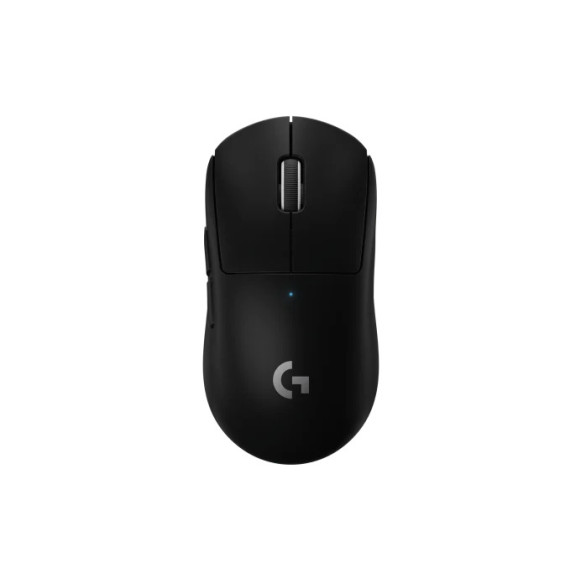
The Logitech G Pro X Superlight is a wireless gaming mouse that is known for its lightweight design and excellent performance. It weighs only 63 grams, making it one of the lightest wireless gaming mice on the market.
It also has a very high polling rate of 1000 Hz, which means that it can register clicks and movements very quickly.
The G Pro X Superlight uses Logitech’s HERO sensor, which is one of the most accurate and responsive mouse sensors on the market.
It also has a very low click latency, which means that there is very little delay between you clicking the mouse button and the click being registered.
Razer Viper Mini
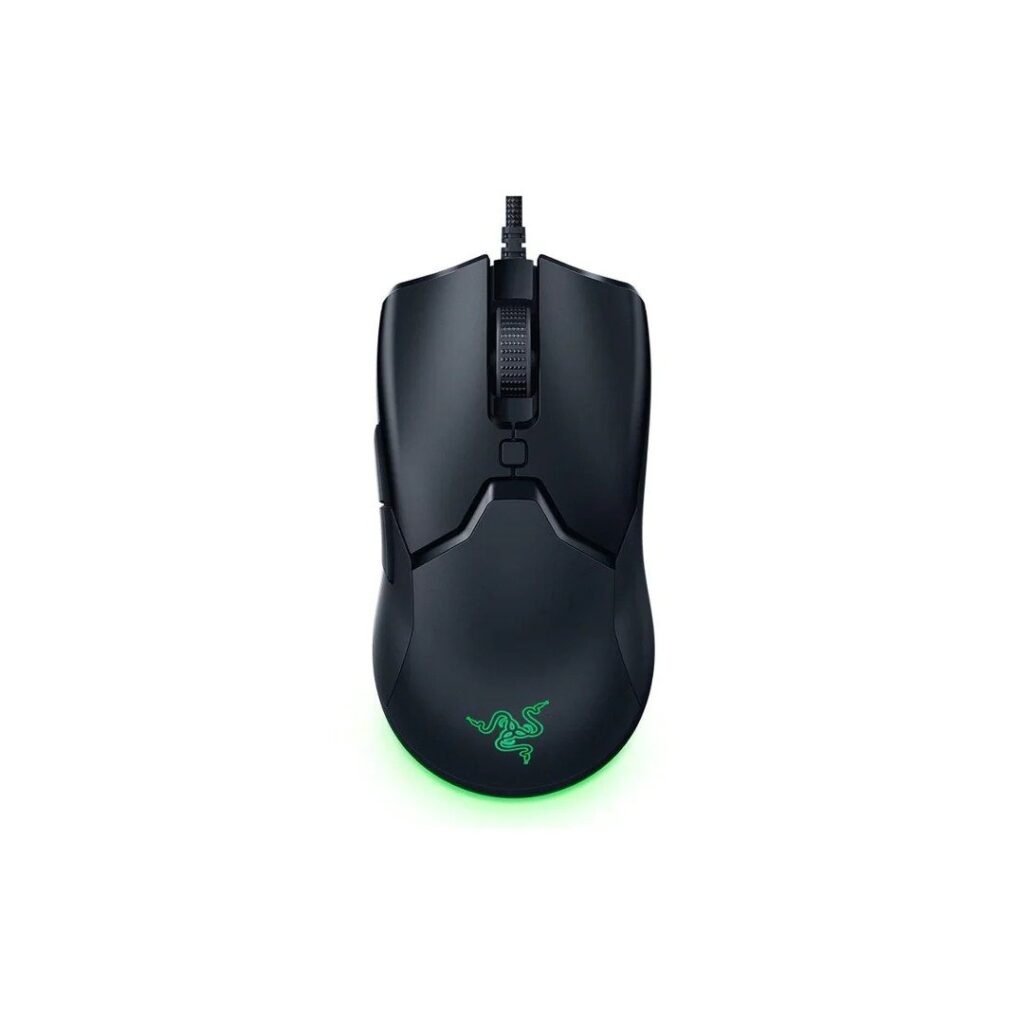
The Razer Viper Mini is a wired gaming mouse that is known for its small size and lightweight design. It weighs only 61 grams, making it one of the lightest wired gaming mice on the market. It is also very small, making it ideal for people with small hands.
The Viper Mini uses Razer’s Focus+ optical sensor, which is a very accurate and responsive mouse sensor.
It also has a very low click latency, which means that there is very little delay between you clicking the mouse button and the click being registered.
Glorious Model O
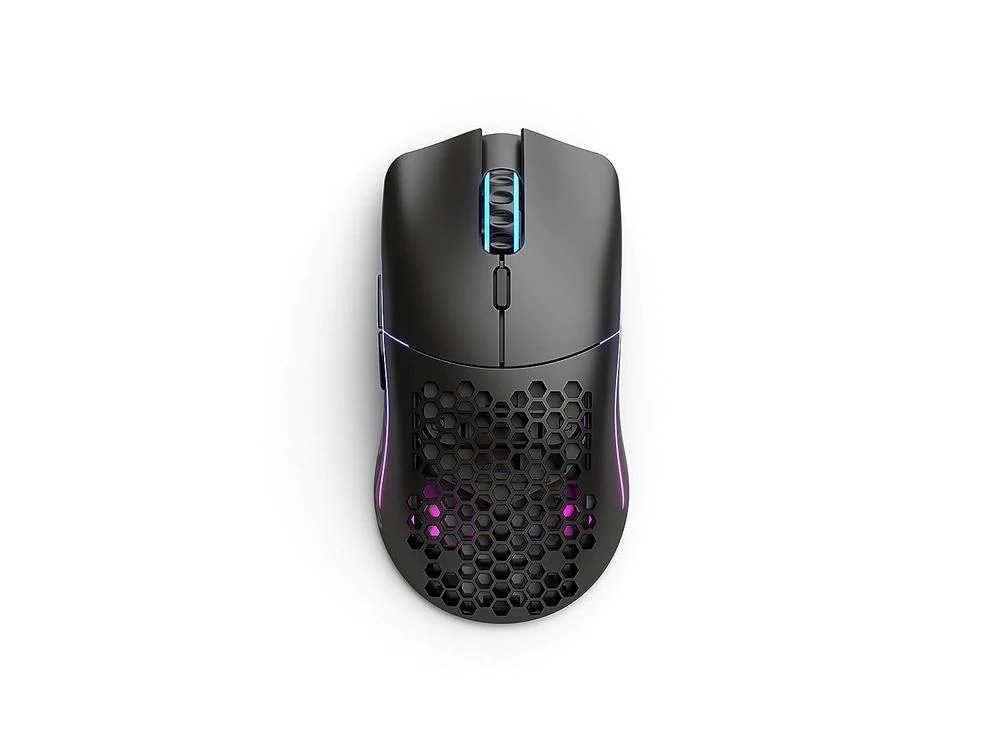
The Glorious Model O is a wired gaming mouse that is known for its honeycomb design and lightweight design. It weighs only 67 grams, making it one of the lightest wired gaming mice on the market.
It also has a very comfortable shape that is ideal for palm grip and claw grip users.
The Model O uses PixArt’s PMW-3360 optical sensor, which is one of the most popular and well-respected mouse sensors on the market. It is very accurate and responsive, and it has a low click latency.
SteelSeries Rival 3
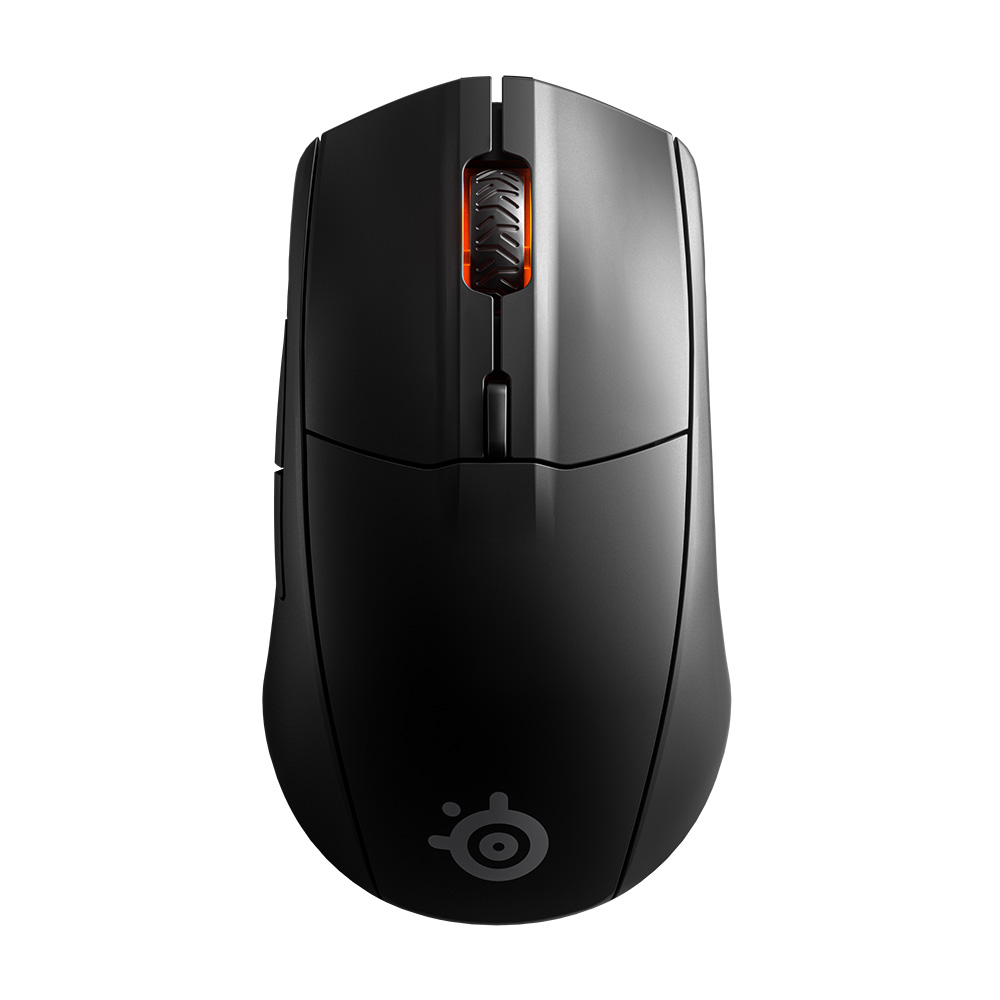
The SteelSeries Rival 3 is a wired gaming mouse that is known for its affordable price and excellent performance. It is a great option for gamers who are on a budget.
The Rival 3 uses PixArt’s PMW-3325 optical sensor, which is a very good sensor for the price. It is accurate and responsive, and it has a low click latency.
Redragon M711
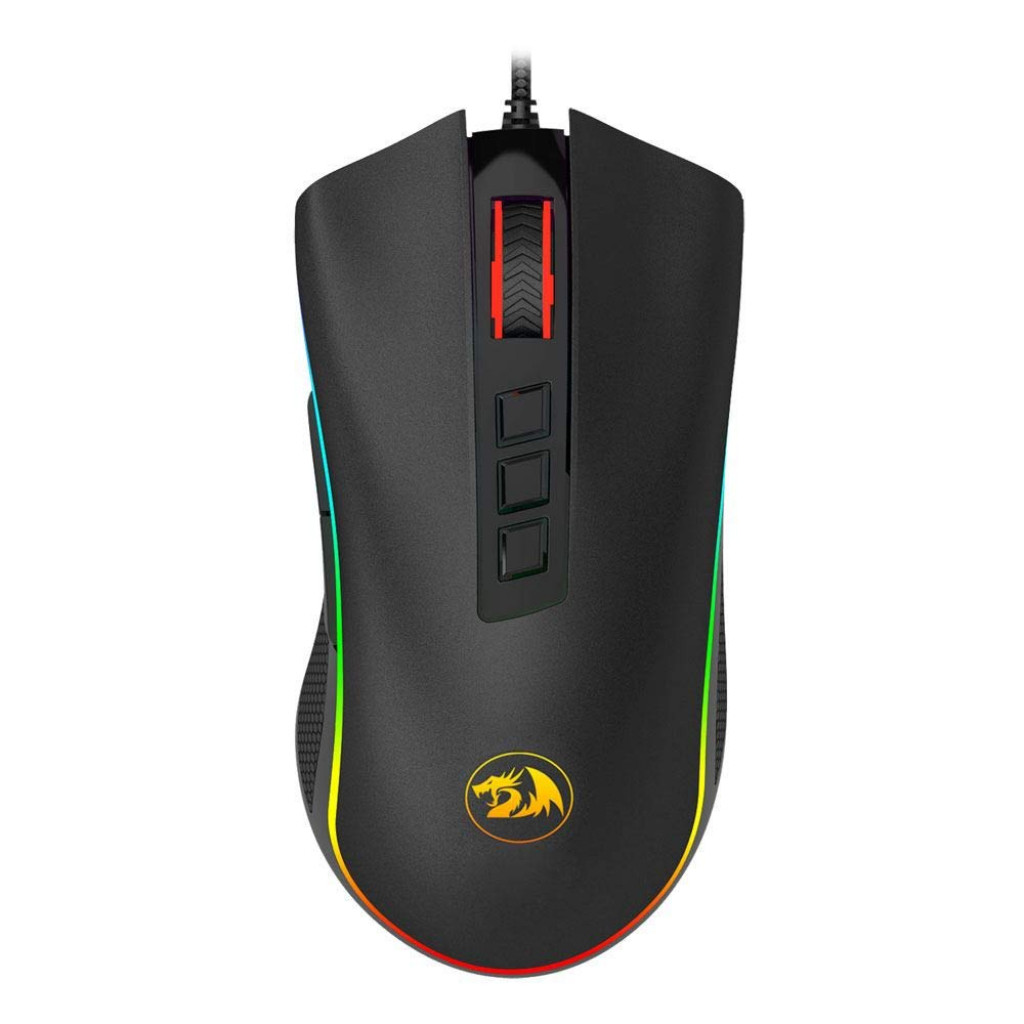
The Redragon M711 is a wired gaming mouse that is known for its excellent value for money. It is a great option for gamers who are looking for a good quality mouse without spending a lot of money.
The M711 uses PixArt’s PMW-3327 optical sensor, which is a good sensor for the price. It is not as accurate or responsive as some of the more expensive mouse sensors, but it is still good enough for most gamers.
FAQs
What Mouse Can Jitter Click?
Any mouse can jitter click, but some mice are better suited for jitter clicking than others. Mice with mechanical switches, a low click actuation force, and a lightweight design are generally the best for jitter clicking.
Here are a few specific mouse models that are known for being good for jitter clicking:
- Logitech G Pro X Superlight
- Razer Viper Mini
- Glorious Model O
- SteelSeries Rival 3
- Redragon M711
What Is The Best Gaming Mouse For Jitter Clicking?
The best gaming mouse for jitter clicking is a matter of personal preference, but some of the most popular and highly rated mice for jitter clicking include the following.
- Logitech G Pro X Superlight
- Razer Viper Mini
- Glorious Model O
Is The G Pro Wireless Good For Jitter Clicking?
Yes, the Logitech G Pro Wireless is a good mouse for jitter clicking. It is lightweight, has a responsive sensor, and has a low click latency. It also has durable mechanical switches that can handle the repeated clicking of jitter clicking.
Conclusion
When choosing a mouse for jitter clicking, it is important to consider your grip style, hand size, and budget.
The mice listed above are all good options for jitter clicking, but you may want to try out a few different mice to find one that is perfect for you.
Be sure to take breaks often to avoid fatigue and injury.